Activate the ZugerKB Access app on your new smartphone
To use the ZugerKB Access app on your new smartphone, you need to order the activation letter or a backup.


To use the ZugerKB Access app on your new smartphone, you need to order the activation letter or a backup.
In the Zuger KB Access app, you have the option of restoring your contracts, provided that a backup was successfully set up before deleting the app or purchasing a new cell phone.
iOS
If you have an iOS device, you do not need to set up your own backup, as iOS does this automatically for you. Reinstall the Zuger KB Access app on your device. After installation, you will receive a notification that a backup has been found and that you can restore it. If this notification does not appear automatically, click on “More.” There, the notification to “Restore contracts” should be active. As soon as you select this message, your previously registered contracts will be restored. If no backup is available, you will not be able to restore your contracts. In this case, please contact our customer support.
Android
With an Android device, data is generally backed up automatically under certain conditions. Please read Google's instructions for “Automatically backing up data on your smartphone.” If you do not want or have not set up automatic backup, you can also perform the backup manually. Reinstall the Zuger KB Access app on your device. After installation, you will receive a notification that a backup has been found and that you can restore it. If this notification does not appear automatically, click on “More.” There, the notification to “Restore contracts” should be active. As soon as you select this message, your previously registered contracts will be restored. If no backup is available, you will not be able to restore your contracts. In this case, please contact our customer support.
After opening the ZugerKB Access app on your new smartphone, a banner will appear (Figure 1). This informs you that active contracts can be restored from the backup.
If you would like to restore the contracts later, you can do so at any time via the navigation bar under “More” (Figure 2).
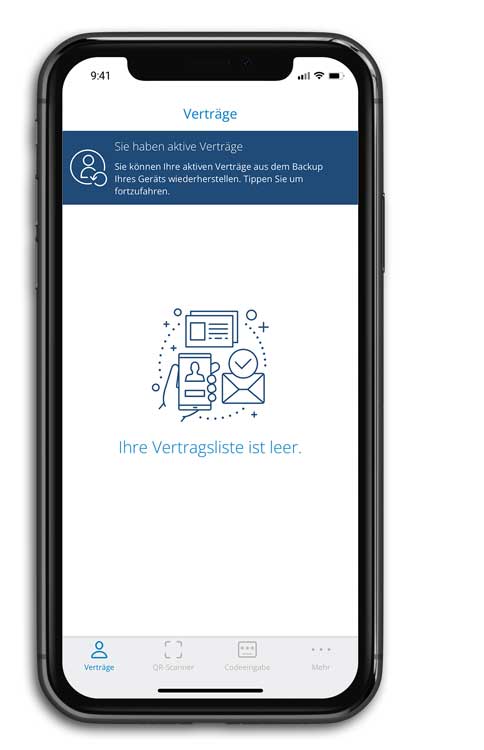
Restoring contracts via banner message
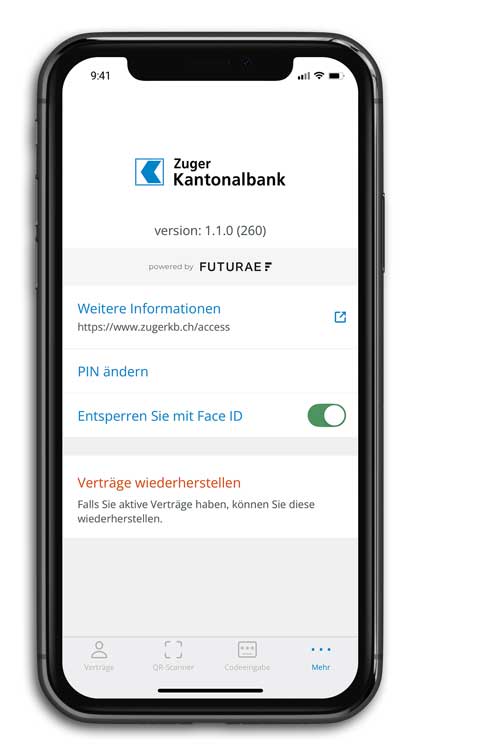
Restore contracts via the “More” navigation item
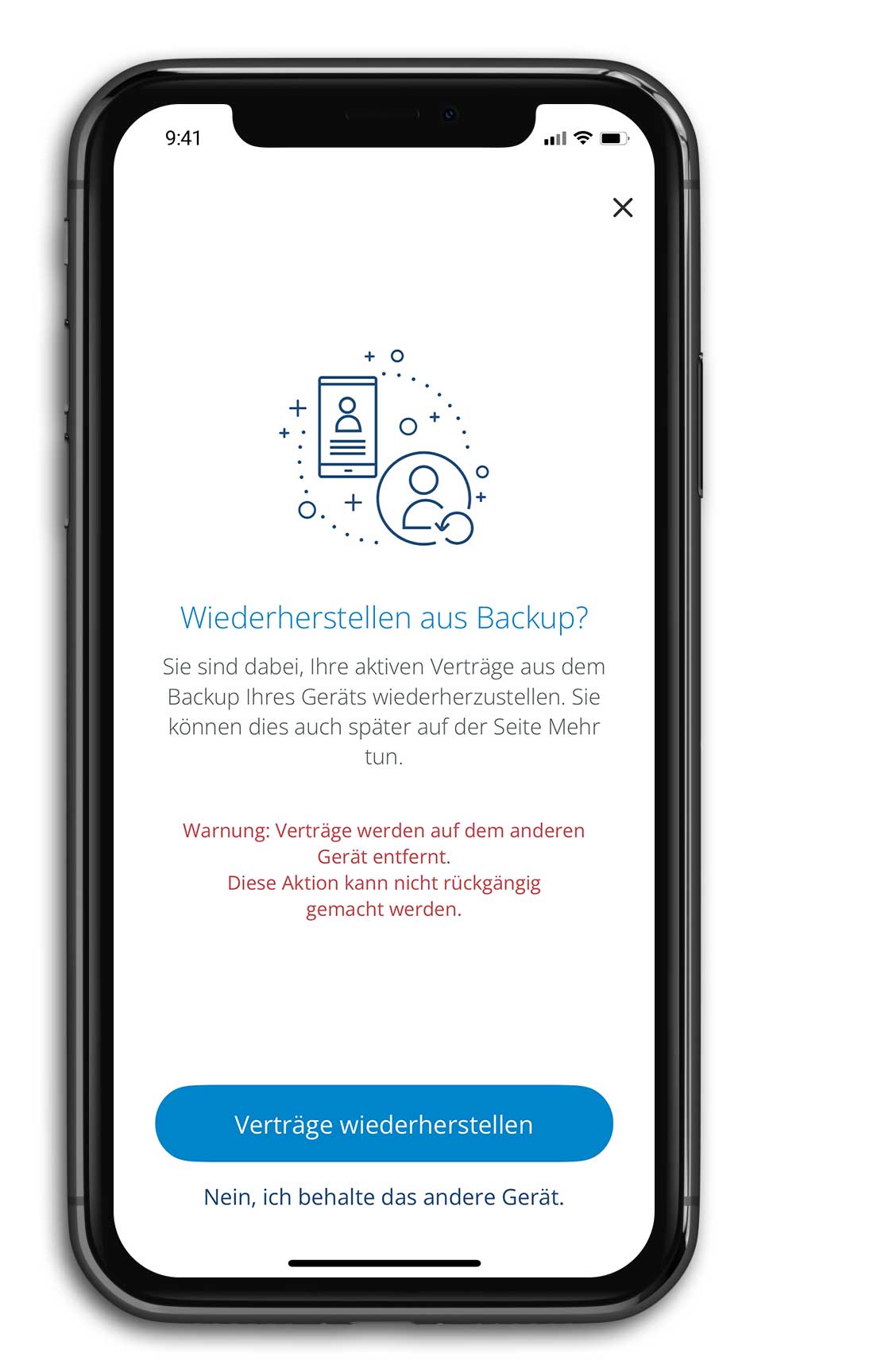
Tap the “Restore contracts” button. This will deactivate access via the old device.
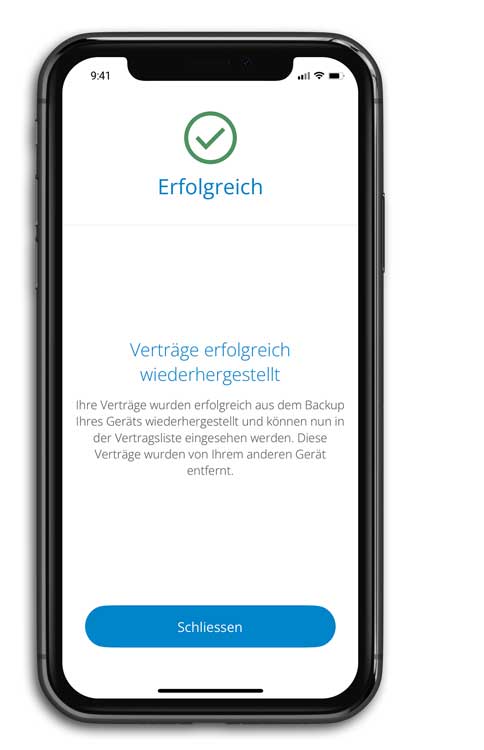
The contracts have been successfully restored from the backup. Your smartphone is now ready to use for e-banking access.
Our support team is available from Monday to Friday from 08:00 to 18:00.